> ## Documentation Index
> Fetch the complete documentation index at: https://docs.fwdslash.ai/llms.txt
> Use this file to discover all available pages before exploring further.
# Slack
## Why connect to Slack?
The Slack integration allows your team to receive notifications and respond to messages whenever a conversation requires human intervention. Instead of continuously monitoring your dashboard, your team can respond to escalated conversations directly from a dedicated Slack channel, ensuring that no important customer messages are missed.
This integration is especially useful for support, sales, and customer success teams that already use Slack as their primary communication platform.
## Before you begin
Before connecting Slack, ensure that:
* You have **Administrator** access to your Slack workspace.
* You have **permission** to **manage integrations** in your FwdSlash workspace.
* **Human Escalation** is enabled for the agent where you want notifications.
## Configure Human Escalation
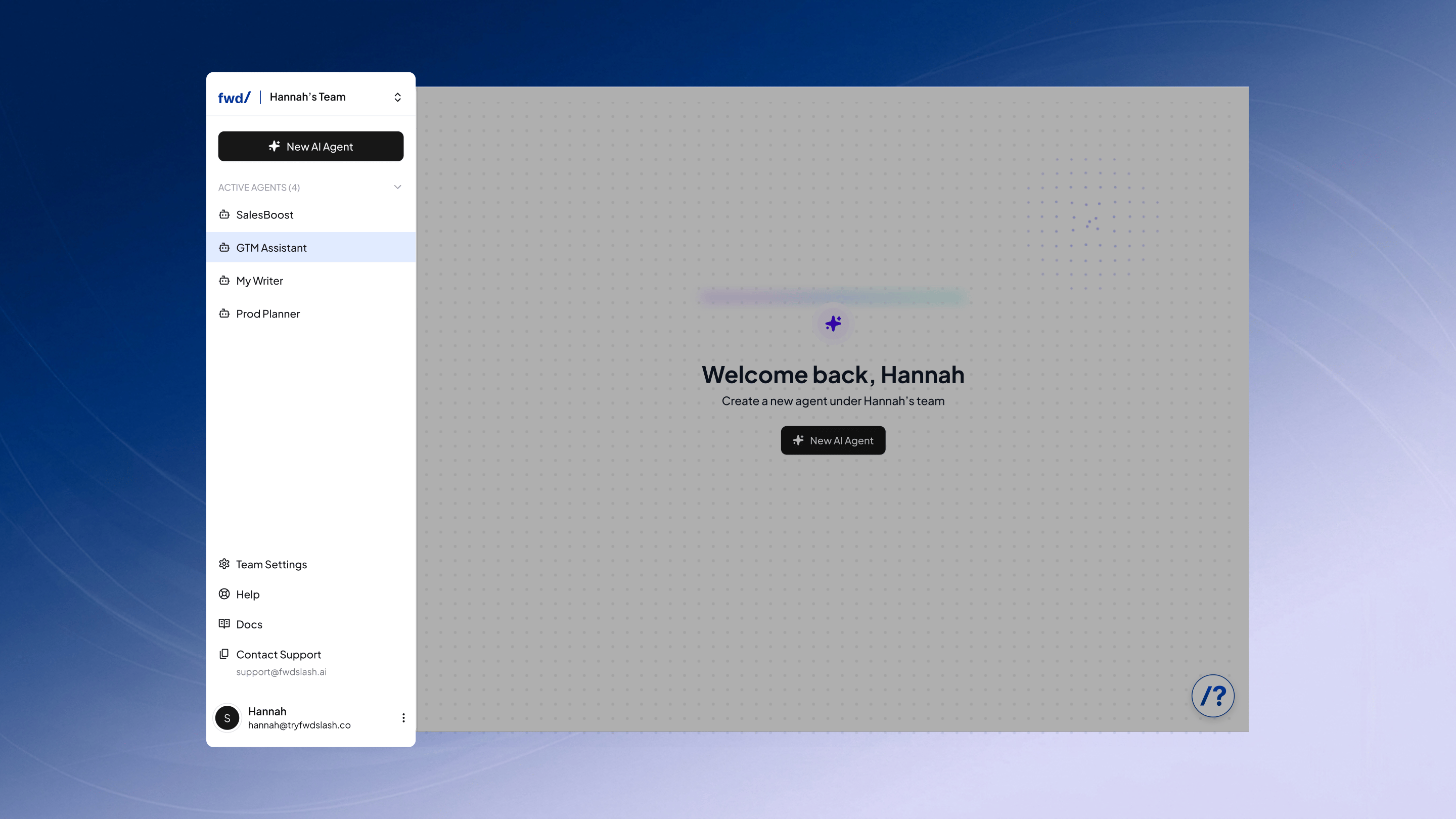
1. Open the agent you want to configure.\\
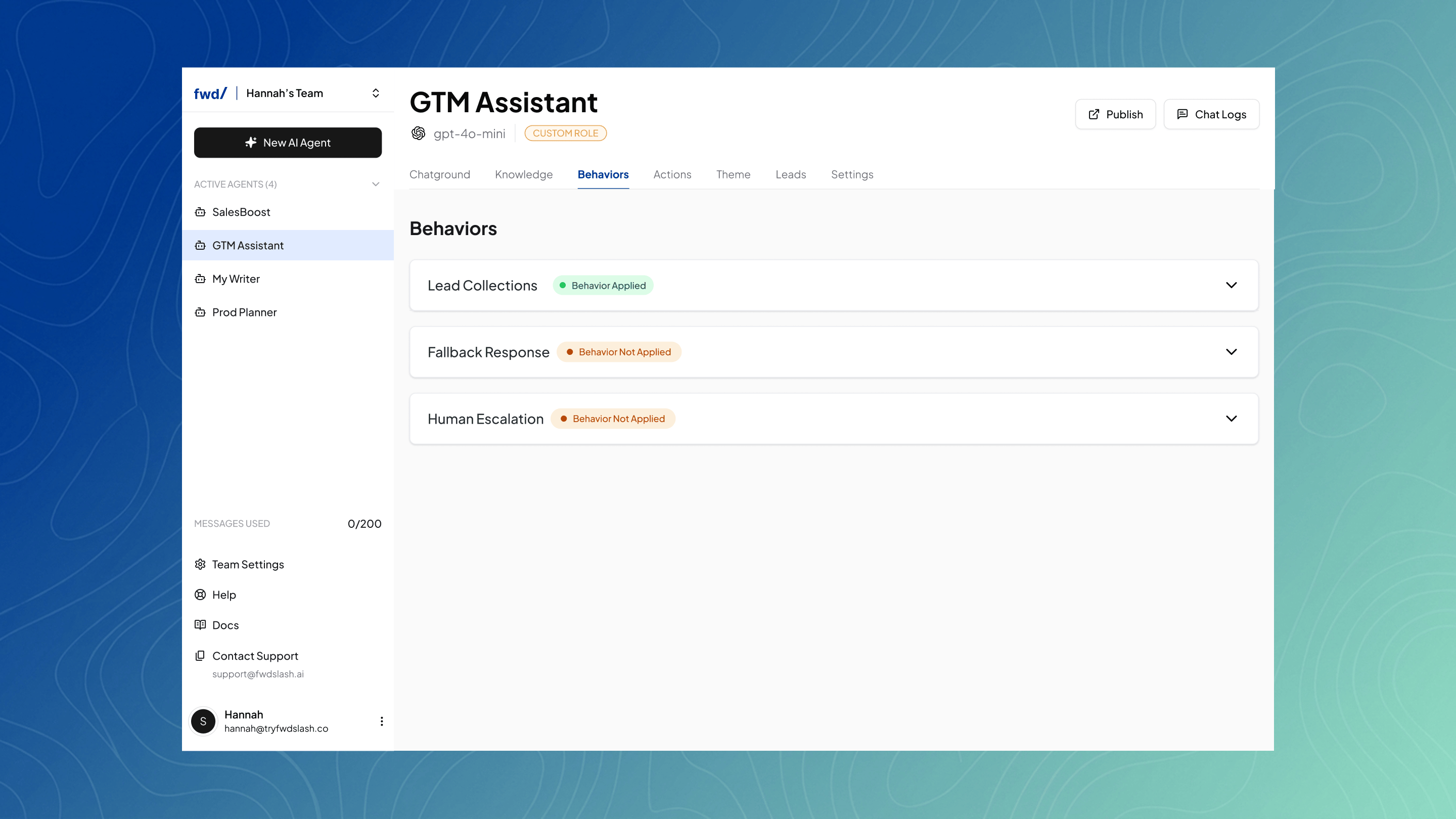
 2. Navigate to **Behaviours → Human Escalation** and enable it.\\
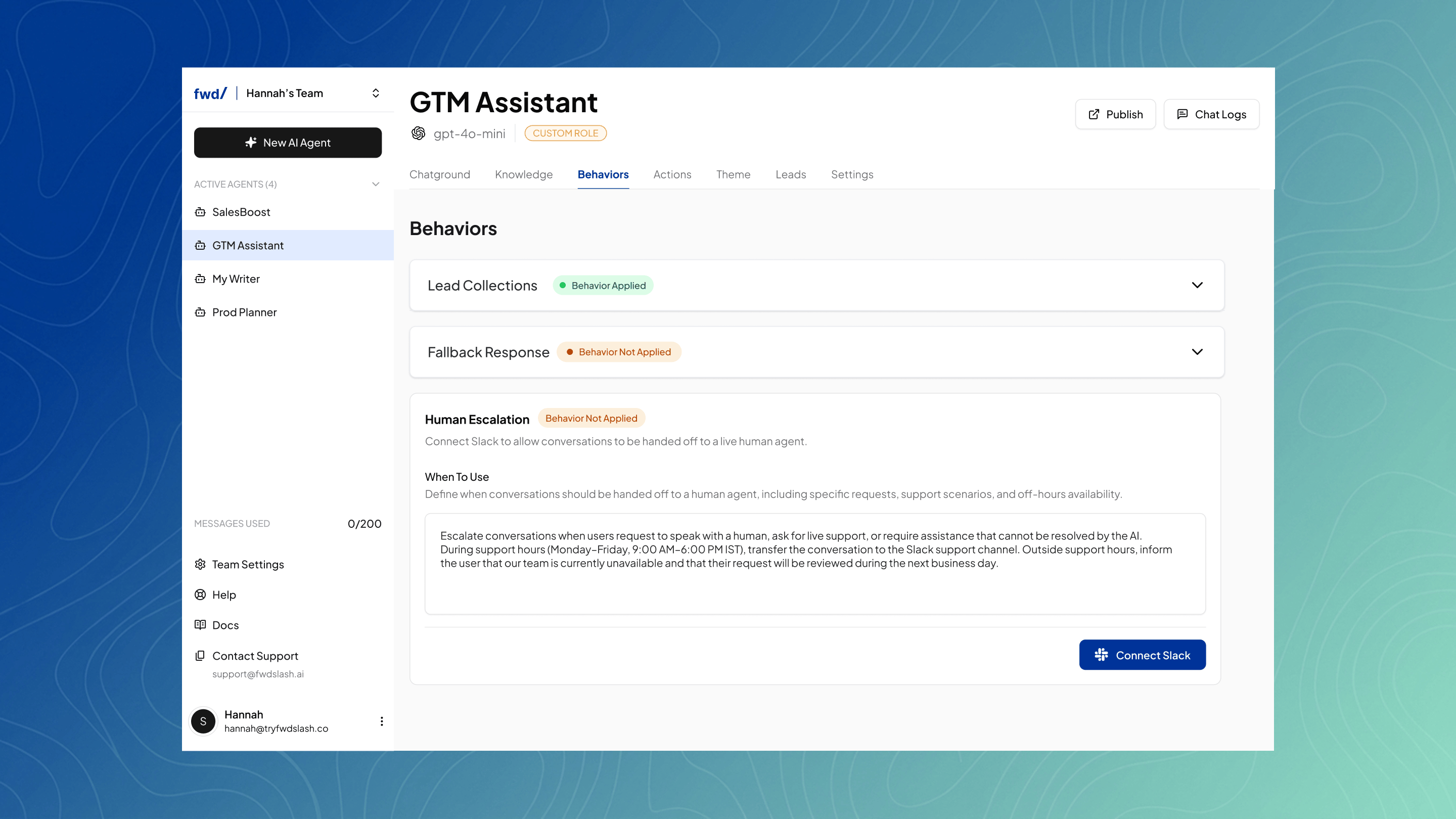
 3. Connect your Slack Workspace.\\
 4. Choose the Slack channel where notifications should be delivered.\\
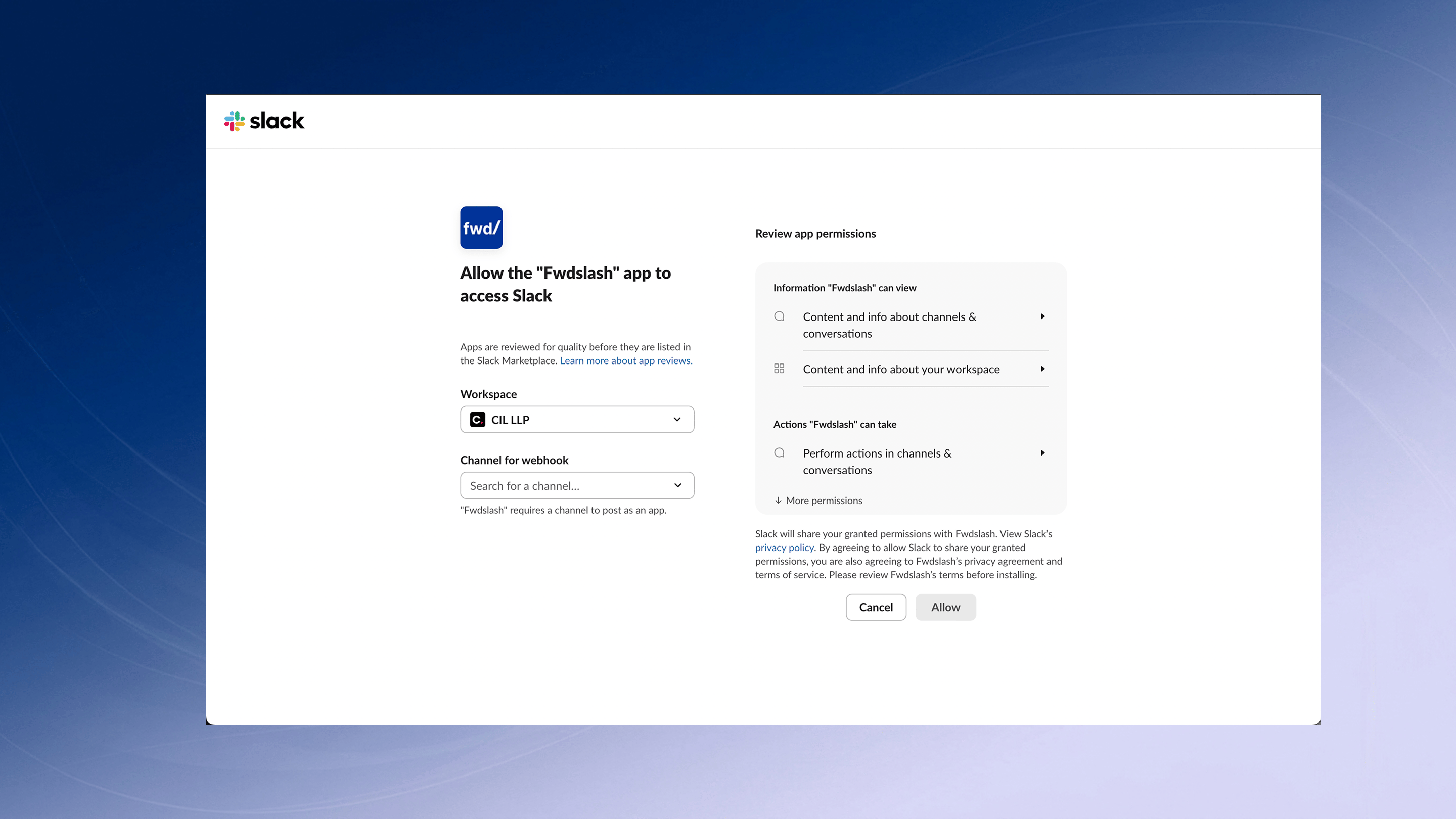 5. Click on Allow and save your changes.
Whenever the AI determines that a conversation requires a human response, FwdSlash will automatically send the conversation details to the selected Slack channel.
## What information is shared?
Each Slack notification includes:
* Chatbot Name
* Customer Email (if available)
* FwdSlash Conversation Thread ID
* Conversation history
* Latest customer message
* Option to mark a conversation as resolved.\\
5. Click on Allow and save your changes.
Whenever the AI determines that a conversation requires a human response, FwdSlash will automatically send the conversation details to the selected Slack channel.
## What information is shared?
Each Slack notification includes:
* Chatbot Name
* Customer Email (if available)
* FwdSlash Conversation Thread ID
* Conversation history
* Latest customer message
* Option to mark a conversation as resolved.\\
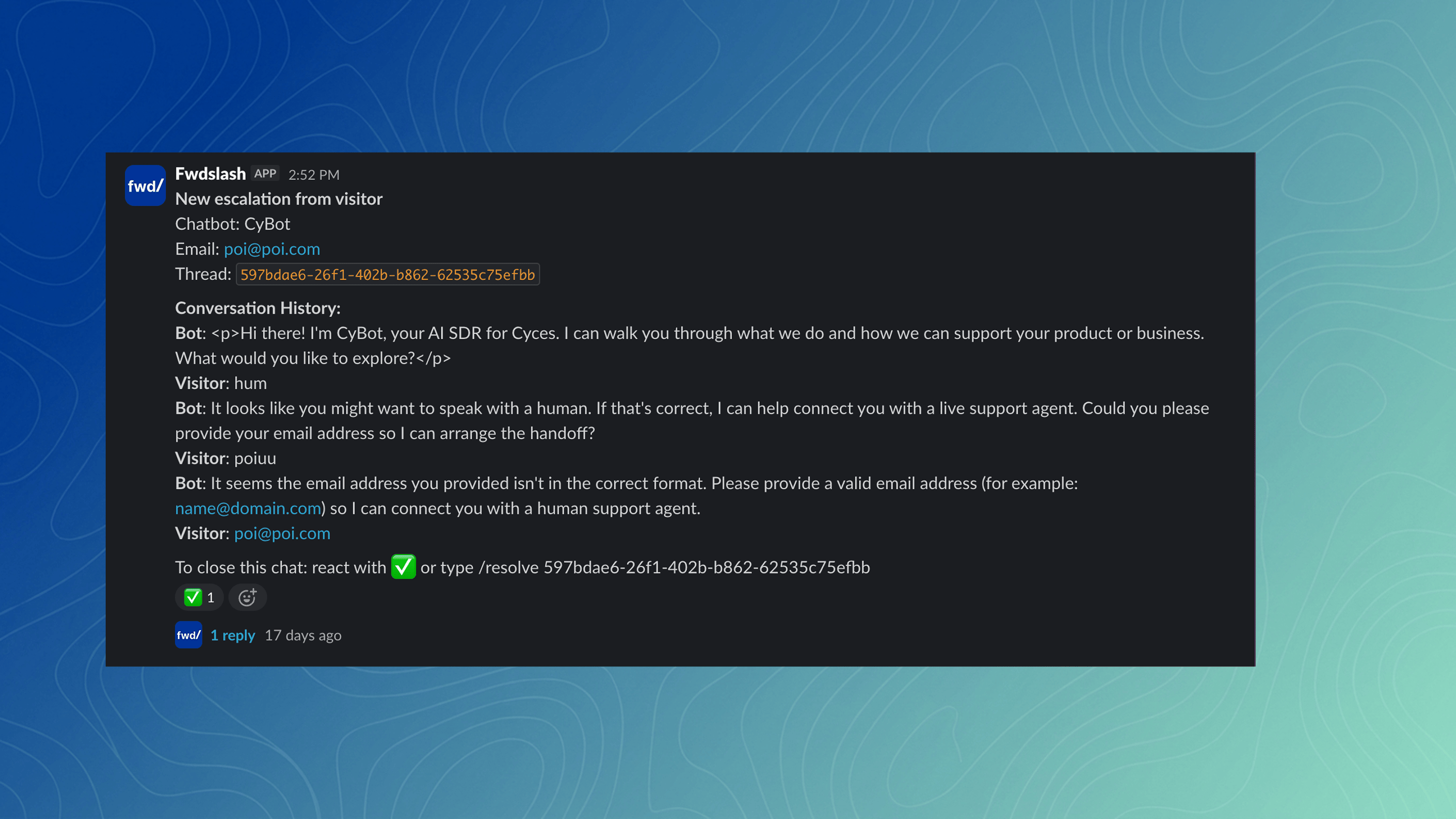 This gives your team enough context before responding to the conversation.
## Best practices
Create a dedicated Slack channel such as **#customer-support** or **#ai-escalations** to keep escalated conversations organized.
Only enable Human Escalation for chatbots that genuinely require manual intervention. This helps reduce unnecessary notifications and keeps response times consistent.
## FAQs
**Can I send notifications to multiple Slack channels?**
Currently, each chatbot can be configured to send escalation notifications to one Slack channel.
**Does Slack replace the FwdSlash Inbox?**
No. Slack complements the FwdSlash Inbox by notifying your team about conversations that require attention. All conversations remain available in the FwdSlash Inbox for tracking, history, and management.
**Can I reply to customers directly from Slack?**
**Yes.** Team members can reply directly within the Slack notification thread, and the response will be delivered to the customer in the website chat. The full conversation history remains synchronized in the FwdSlash Inbox
This gives your team enough context before responding to the conversation.
## Best practices
Create a dedicated Slack channel such as **#customer-support** or **#ai-escalations** to keep escalated conversations organized.
Only enable Human Escalation for chatbots that genuinely require manual intervention. This helps reduce unnecessary notifications and keeps response times consistent.
## FAQs
**Can I send notifications to multiple Slack channels?**
Currently, each chatbot can be configured to send escalation notifications to one Slack channel.
**Does Slack replace the FwdSlash Inbox?**
No. Slack complements the FwdSlash Inbox by notifying your team about conversations that require attention. All conversations remain available in the FwdSlash Inbox for tracking, history, and management.
**Can I reply to customers directly from Slack?**
**Yes.** Team members can reply directly within the Slack notification thread, and the response will be delivered to the customer in the website chat. The full conversation history remains synchronized in the FwdSlash Inbox