> ## Documentation Index
> Fetch the complete documentation index at: https://docs.fwdslash.ai/llms.txt
> Use this file to discover all available pages before exploring further.
# Actions
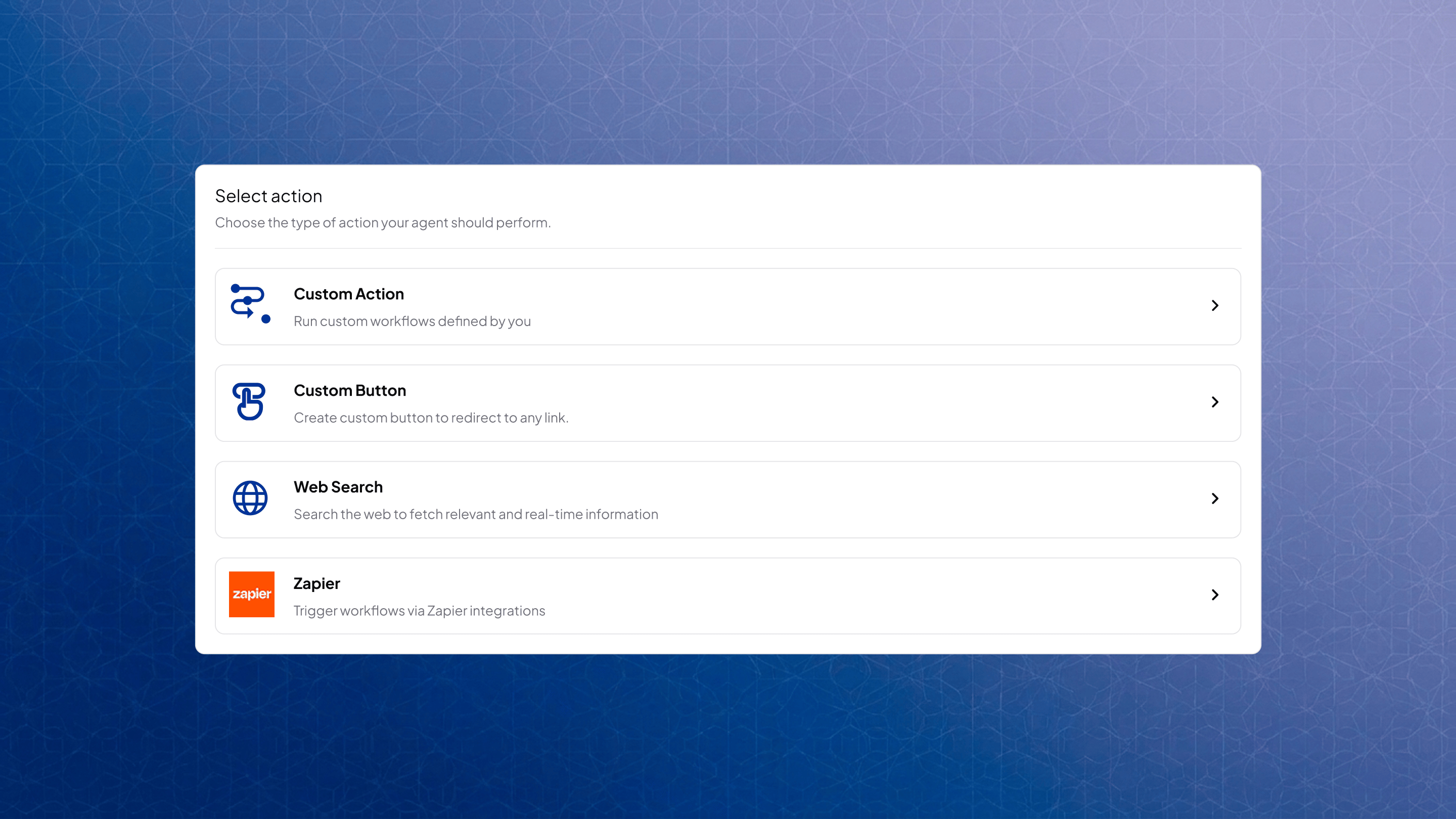
Actions let your agent go beyond conversation and perform tasks, trigger workflows, or fetch external data. They are used to execute API calls, guide users with buttons, retrieve real-time information, and connect with external tools.
Open your agent, navigate to the **Actions tab**, and click **Create New Action.**
## Types of Actions
 ## Custom Action
Custom Actions allow your agent to interact with external APIs to fetch data or perform operations. For example, fetch order status from your backend using an order ID.
You define when the action should trigger using a natural language description, along with example queries. Inputs can be configured to collect required data such as text, numbers, or dates. These inputs can be extracted from the conversation, asked from the user, or pulled from context.
## Custom Action
Custom Actions allow your agent to interact with external APIs to fetch data or perform operations. For example, fetch order status from your backend using an order ID.
You define when the action should trigger using a natural language description, along with example queries. Inputs can be configured to collect required data such as text, numbers, or dates. These inputs can be extracted from the conversation, asked from the user, or pulled from context.
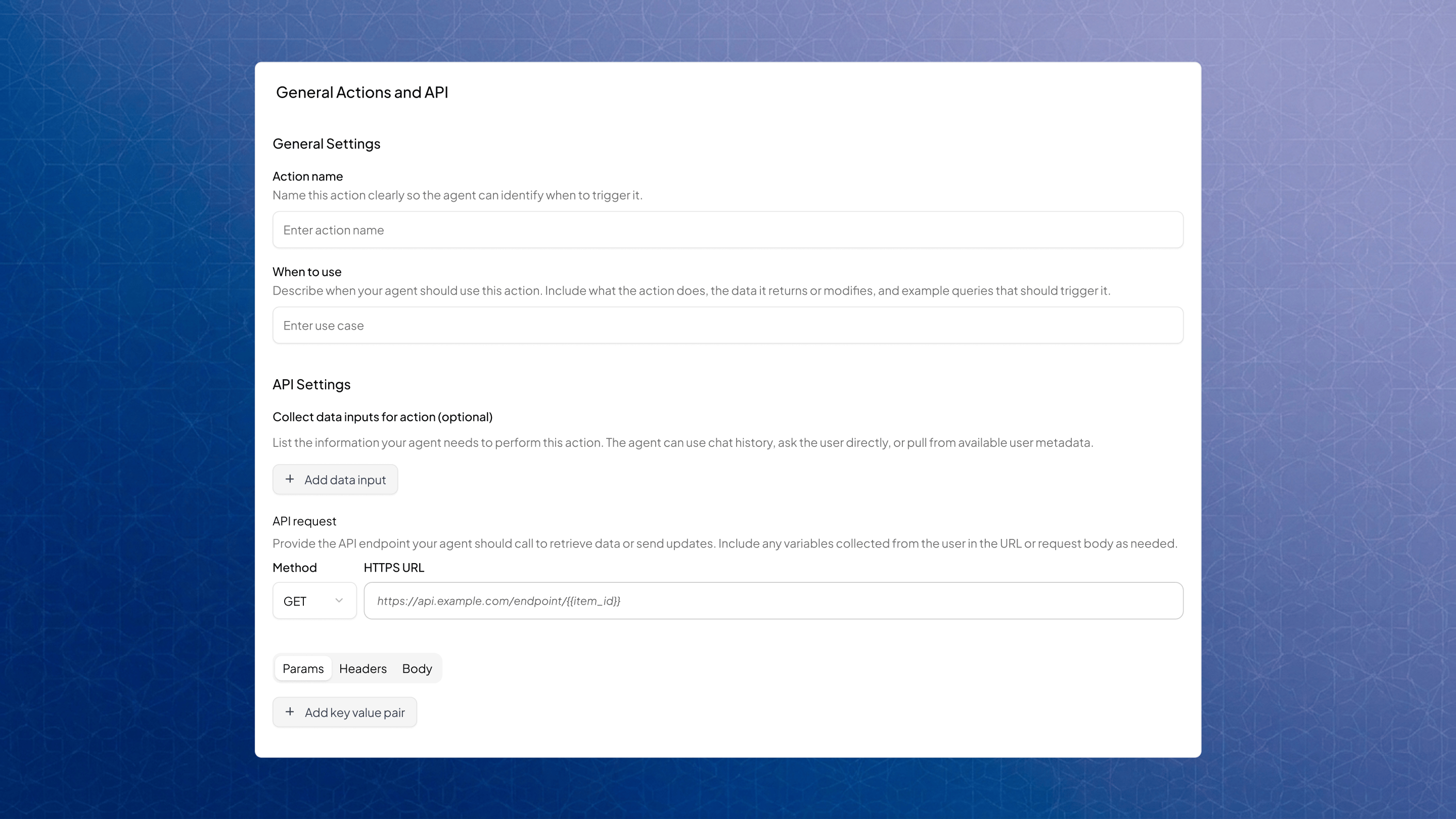 You then set up the API request by specifying the method, endpoint, and any required parameters, headers, or body. Collected inputs can be passed into this request dynamically.
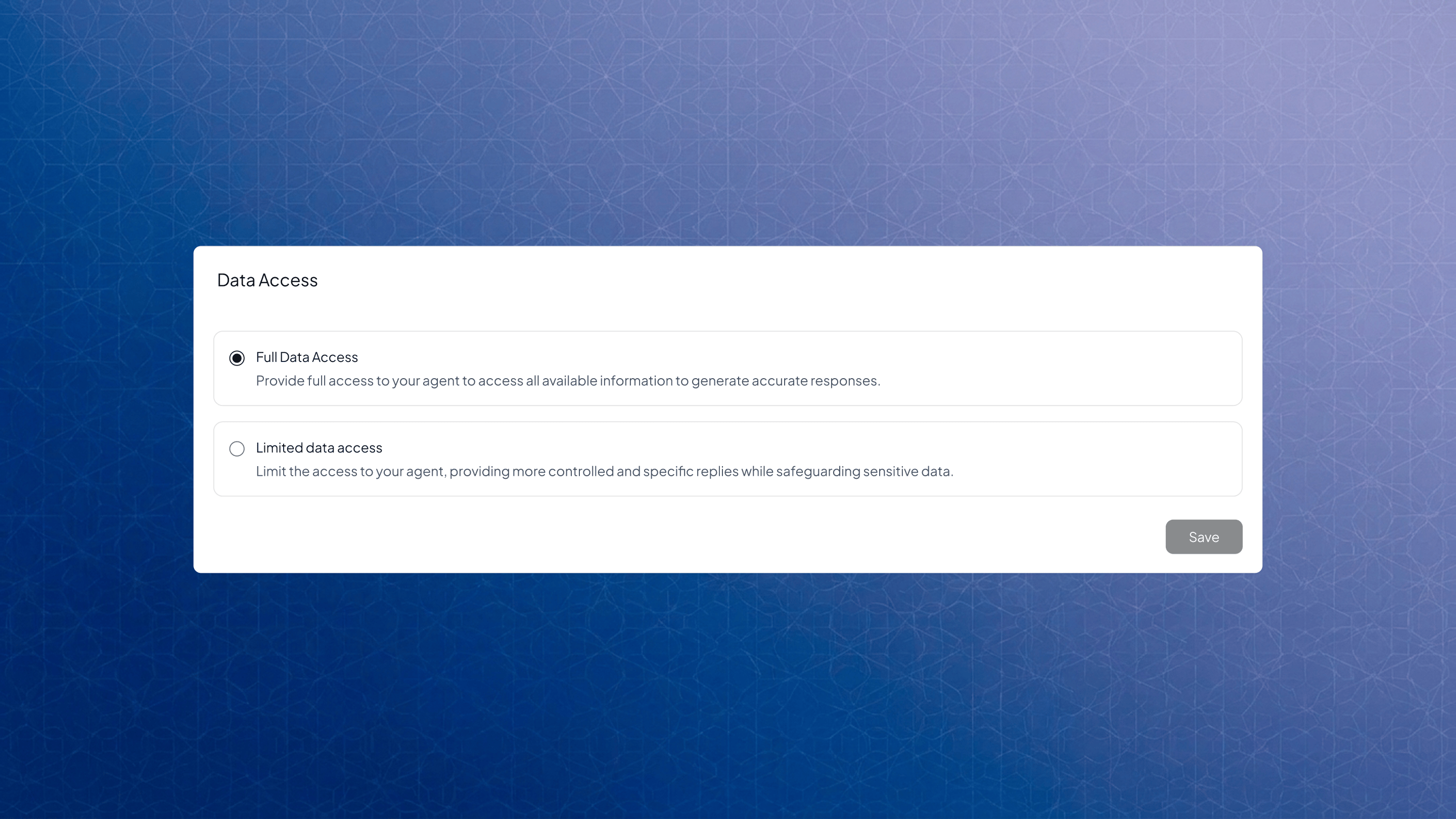
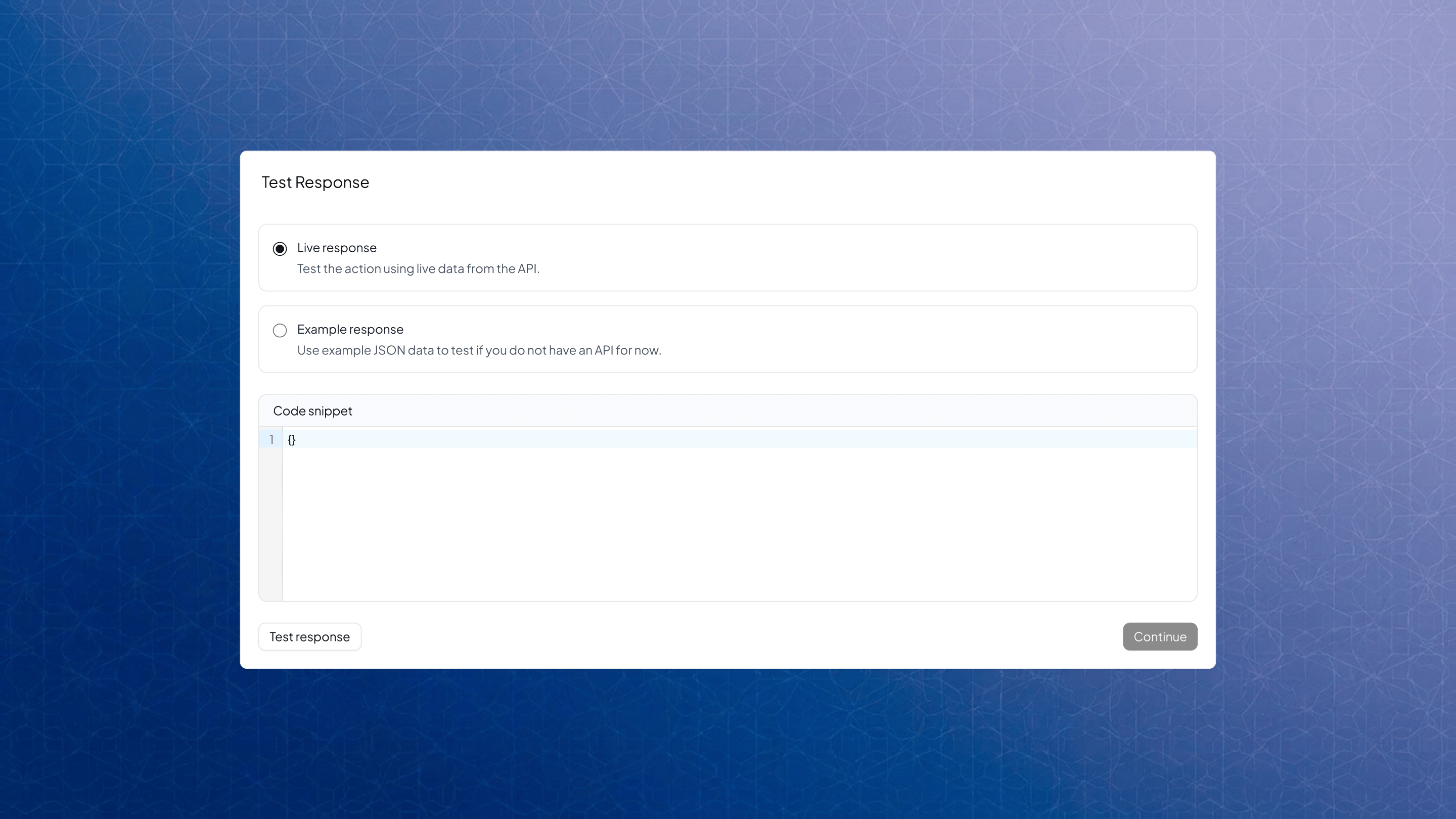 Responses can be tested using either live API data or a sample response. You can also control how much context the action has access to using data access settings.
 ## Custom Button
Custom Buttons allow your agent to show clickable options within the chat. For example, you can add a “Book a Demo” button that links to your calendar.
## Custom Button
Custom Buttons allow your agent to show clickable options within the chat. For example, you can add a “Book a Demo” button that links to your calendar.
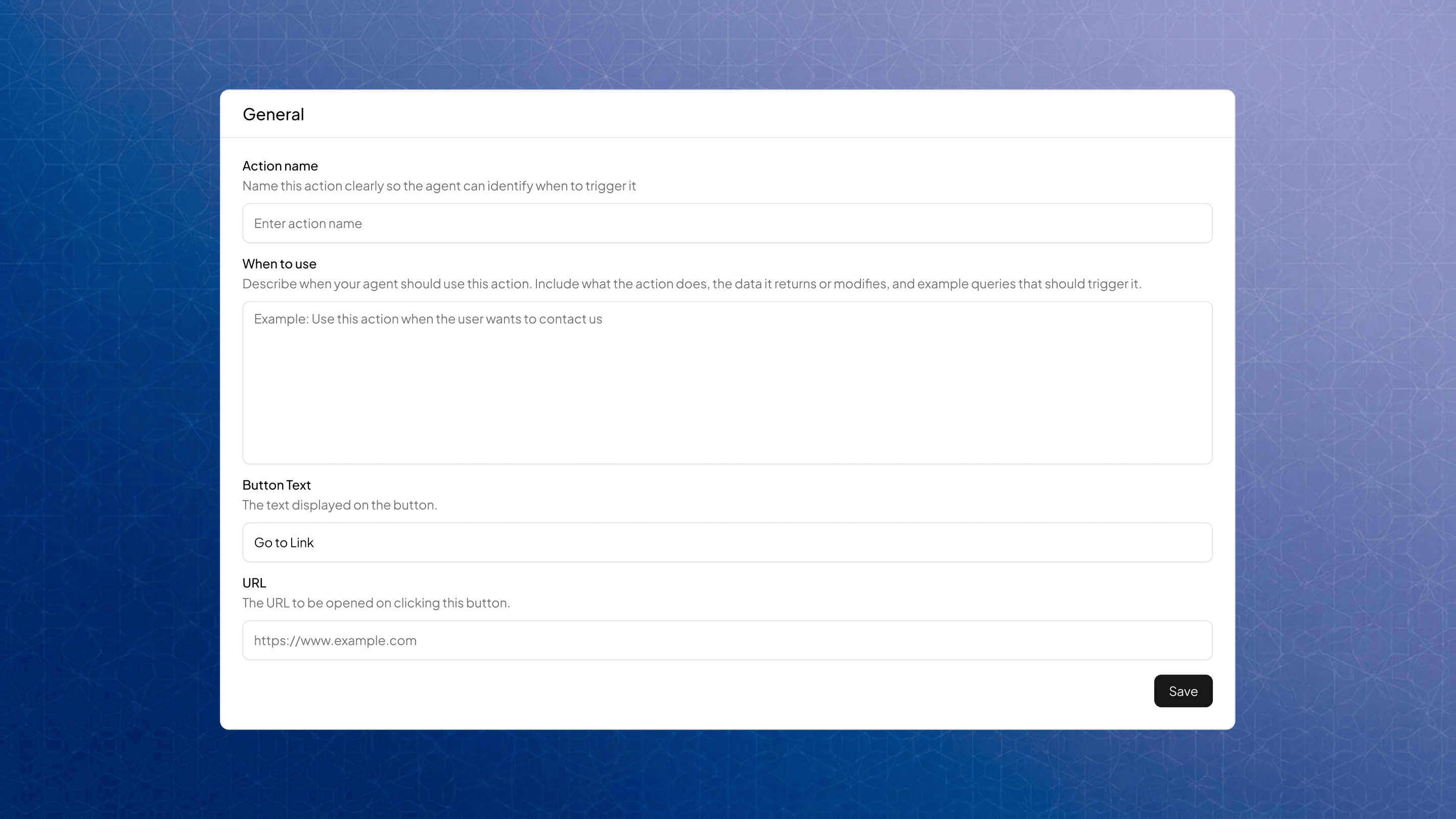 You define when the button should appear, what text it displays, and where it redirects. When the defined condition is met, the agent presents the button, and clicking it takes the user to the specified URL.
## Web Search
Web Search enables the agent to fetch information from the internet when it does not have sufficient knowledge. For example, enable your agent answer questions about recent events using live web data.
You define when the button should appear, what text it displays, and where it redirects. When the defined condition is met, the agent presents the button, and clicking it takes the user to the specified URL.
## Web Search
Web Search enables the agent to fetch information from the internet when it does not have sufficient knowledge. For example, enable your agent answer questions about recent events using live web data.
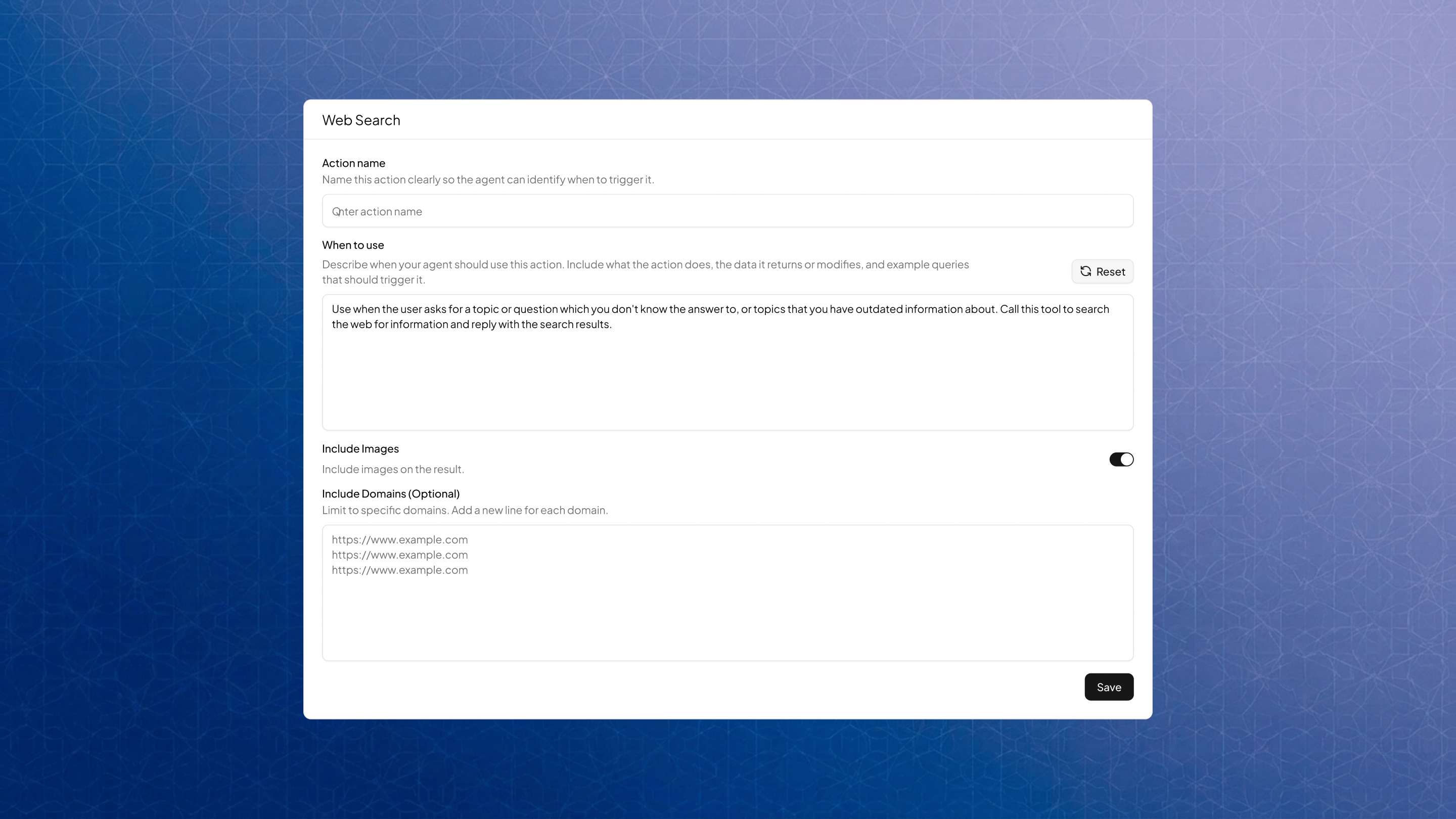 You define when it should be used, typically for unknown or time-sensitive queries. When triggered, the agent performs a web search and returns relevant results.
## Zapier
The Zapier action allows your agent to connect with external applications and automate workflows, via Zapier. For example, you can send captured leads from FwdSlash to your CRM or Google Sheets.
You define when it should be used, typically for unknown or time-sensitive queries. When triggered, the agent performs a web search and returns relevant results.
## Zapier
The Zapier action allows your agent to connect with external applications and automate workflows, via Zapier. For example, you can send captured leads from FwdSlash to your CRM or Google Sheets.
You can link your agent to Zapier, authenticate your account, and configure integrations. Once set up, your agent can trigger actions or workflows across tools like CRMs, email platforms, or databases.
***
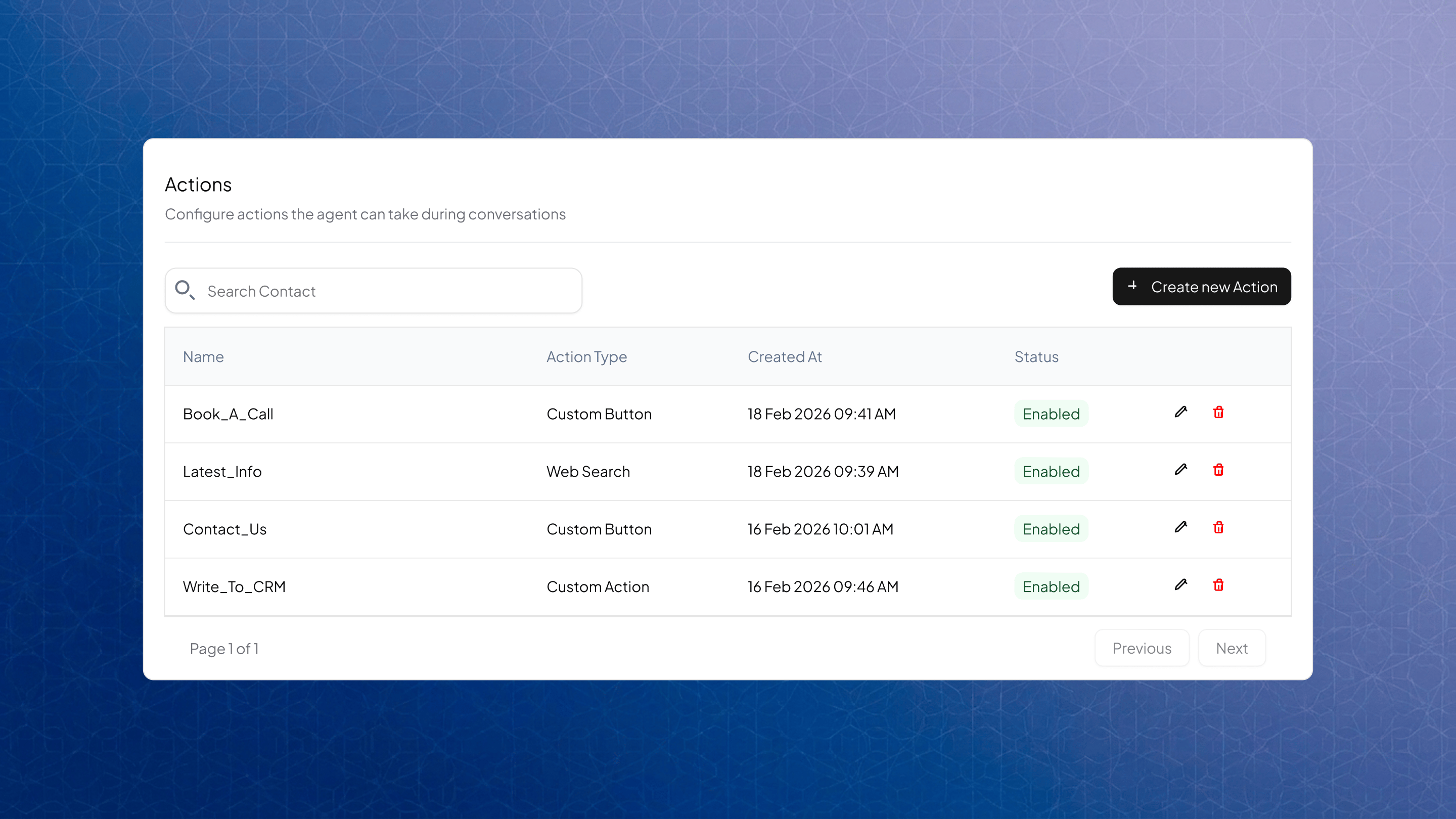
All created actions appear in a table with key details like name, type, status, and timestamps. You can edit or delete actions from here. Each action must be enabled and saved to take effect.
You can link your agent to Zapier, authenticate your account, and configure integrations. Once set up, your agent can trigger actions or workflows across tools like CRMs, email platforms, or databases.
***
All created actions appear in a table with key details like name, type, status, and timestamps. You can edit or delete actions from here. Each action must be enabled and saved to take effect.
 Now that your agent’s capabilities are set up, you can customize how it looks and feels in the **Theme** page.